
Run an assessment
An assessment is a scan of one repository. It rates how ready the repository is for AI-assisted work and lists what to fix. This page shows how to run one.
Before you begin
Section titled “Before you begin”The repository must be in your Repositories list. See Import repositories.
Run the assessment
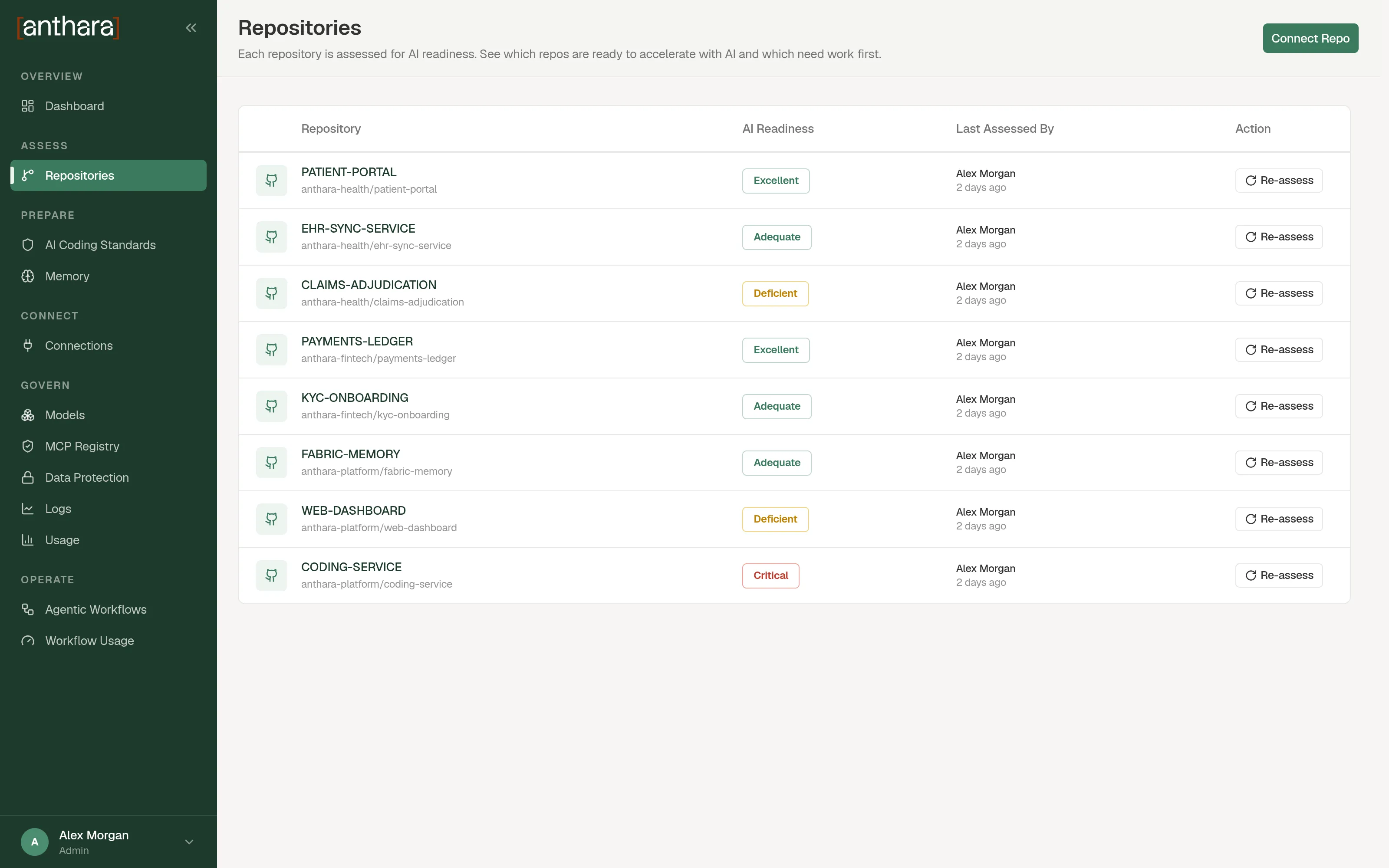
Section titled “Run the assessment”- Open Repositories.
- Find the repository and select Assess.
- Wait while the button shows Scanning. You can leave the page. The scan keeps running.
- When the scan finishes, select the repository to open its results.
The same Assess button is on the repository’s own page.
Run it again
Section titled “Run it again”After you change the repository, select Re-assess. The button replaces Assess once a repository has a completed assessment.
Anthara runs one scan per repository at a time. A second request is ignored while a scan is pending or running.
What a scan does
Section titled “What a scan does”- Anthara clones the repository into a temporary folder.
- An AI model reads the code and produces the results.
- Anthara saves the results and deletes the clone.
Assessments only run when someone starts them. Anthara does not scan on a schedule or on each push.
What a scan produces
Section titled “What a scan produces”| Result | Where to read it |
|---|---|
| An overall rating and four dimension ratings | AI Readiness Score |
| Findings and action items | Read the Overview and apply a Proposed Fix |
| A written risk summary by category | Risk Analysis |
| Files that change often, and files that many others depend on | Sensitive Areas |
Find earlier assessments
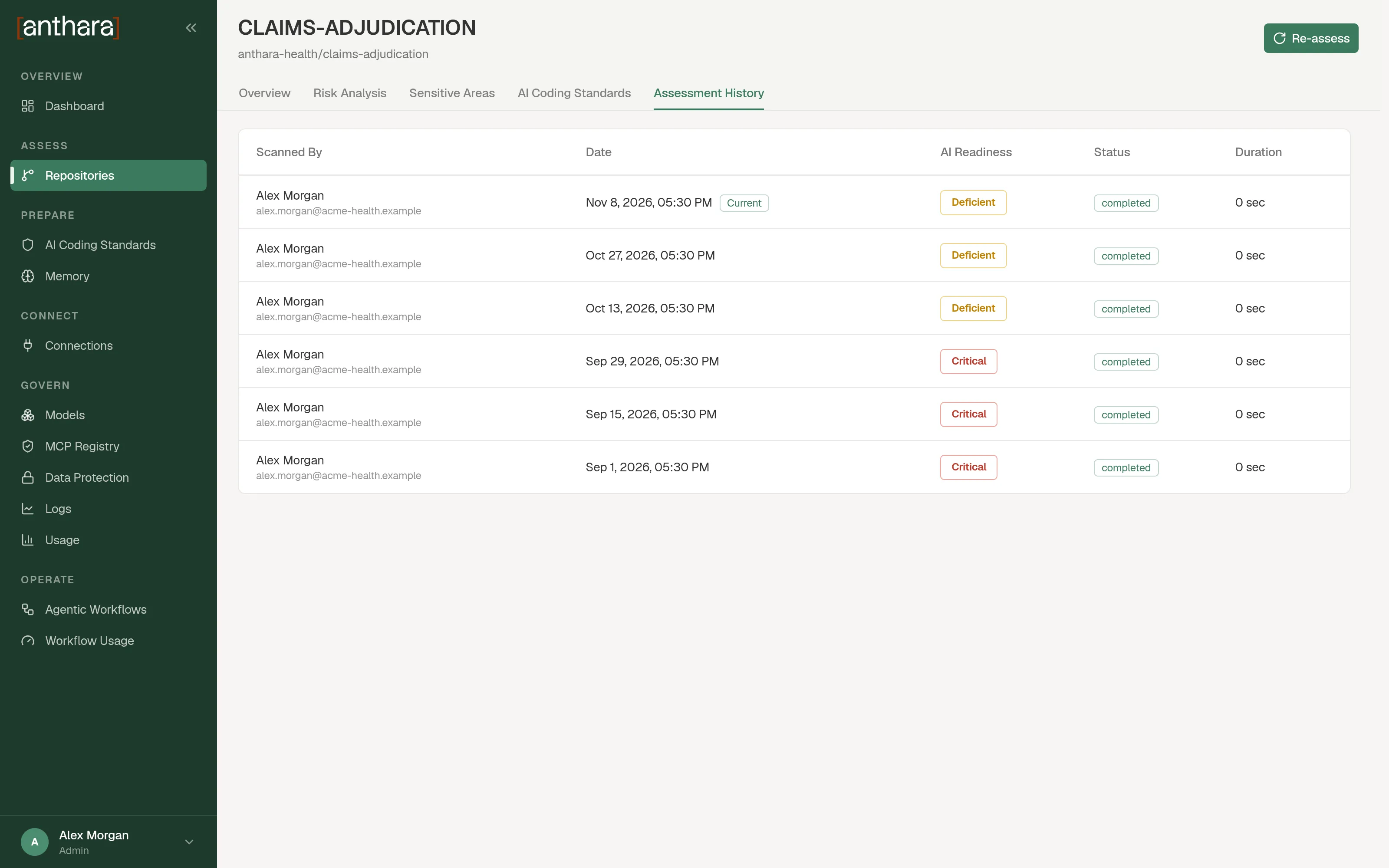
Section titled “Find earlier assessments”Open the repository and select the Assessment History tab. Each row is one scan.
| Column | Meaning |
|---|---|
| Scanned By | The person who started the scan. |
| Date | When the scan ran. The newest completed scan is marked Current. |
| AI Readiness | The overall rating from that scan. |
| Status | Whether the scan is pending, running, completed, or ended in an error. |
| Duration | How long the scan took. |
Select a row to see the dimension ratings and summaries from that scan.