

MCP Registry
The MCP Registry page holds your organization’s tool rules. A tool rule says whether AI agents may call a tool, and which argument values are blocked. The LLM Proxy applies the rules to every request that passes through it.
Only admins can open this page. It is under Govern in the sidebar.
How the rules work
Section titled “How the rules work”Two org-wide settings decide what happens to a tool that has no rule of its own. The page header shows both.
| Header | Values | Meaning |
|---|---|---|
| Default | Allow All or Deny All | Whether a tool without a rule is allowed. |
| Action | Block or Strip | What happens when a denied tool appears in a request. |
A new deployment starts with Allow All.
The page has two tabs:
- MCP Servers lists the MCP servers you have registered. MCP is the protocol that connects an AI session to external tools.
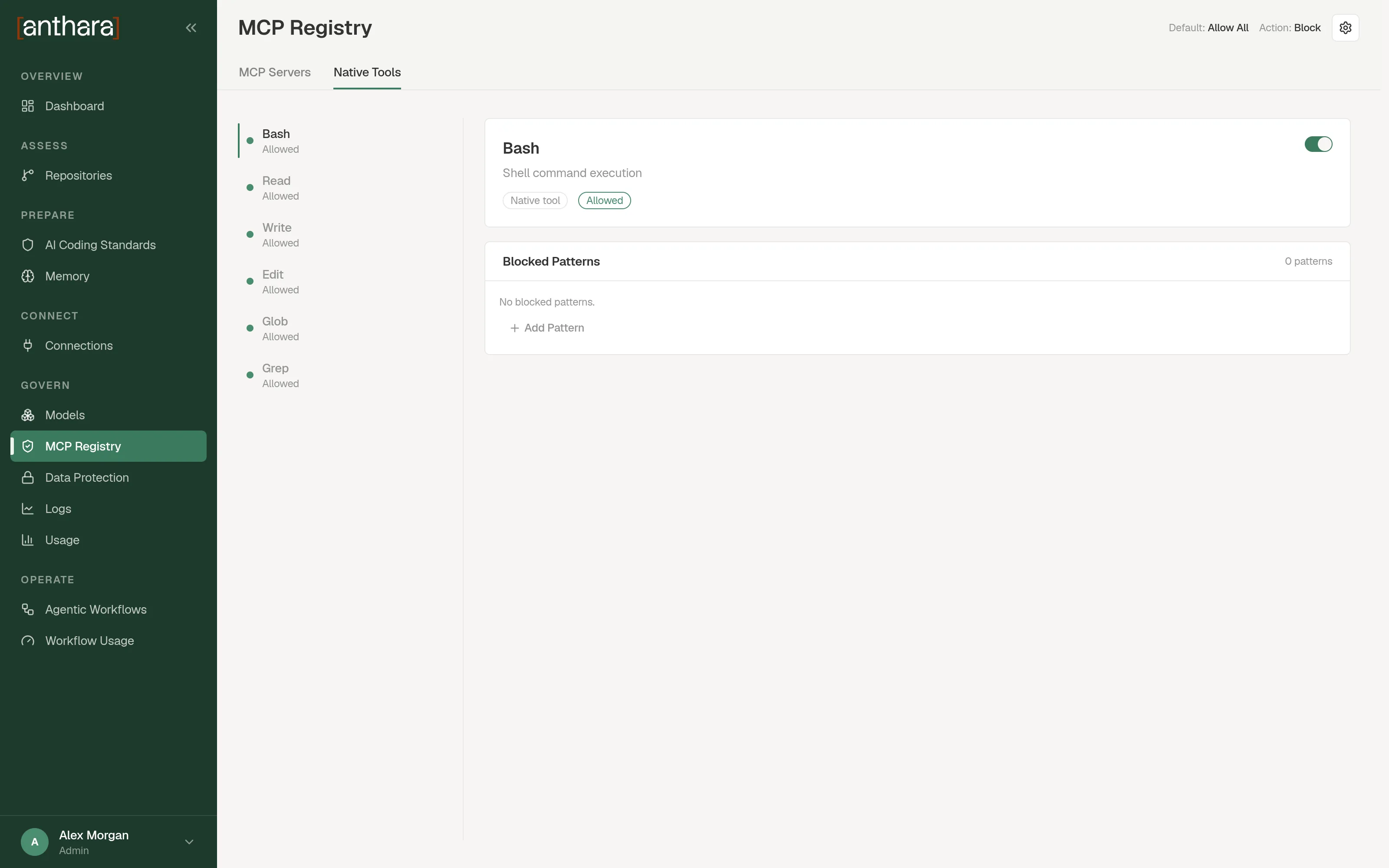
- Native Tools lists the tools built into the coding agent:
Bash,Read,Write,Edit,Glob, andGrep.
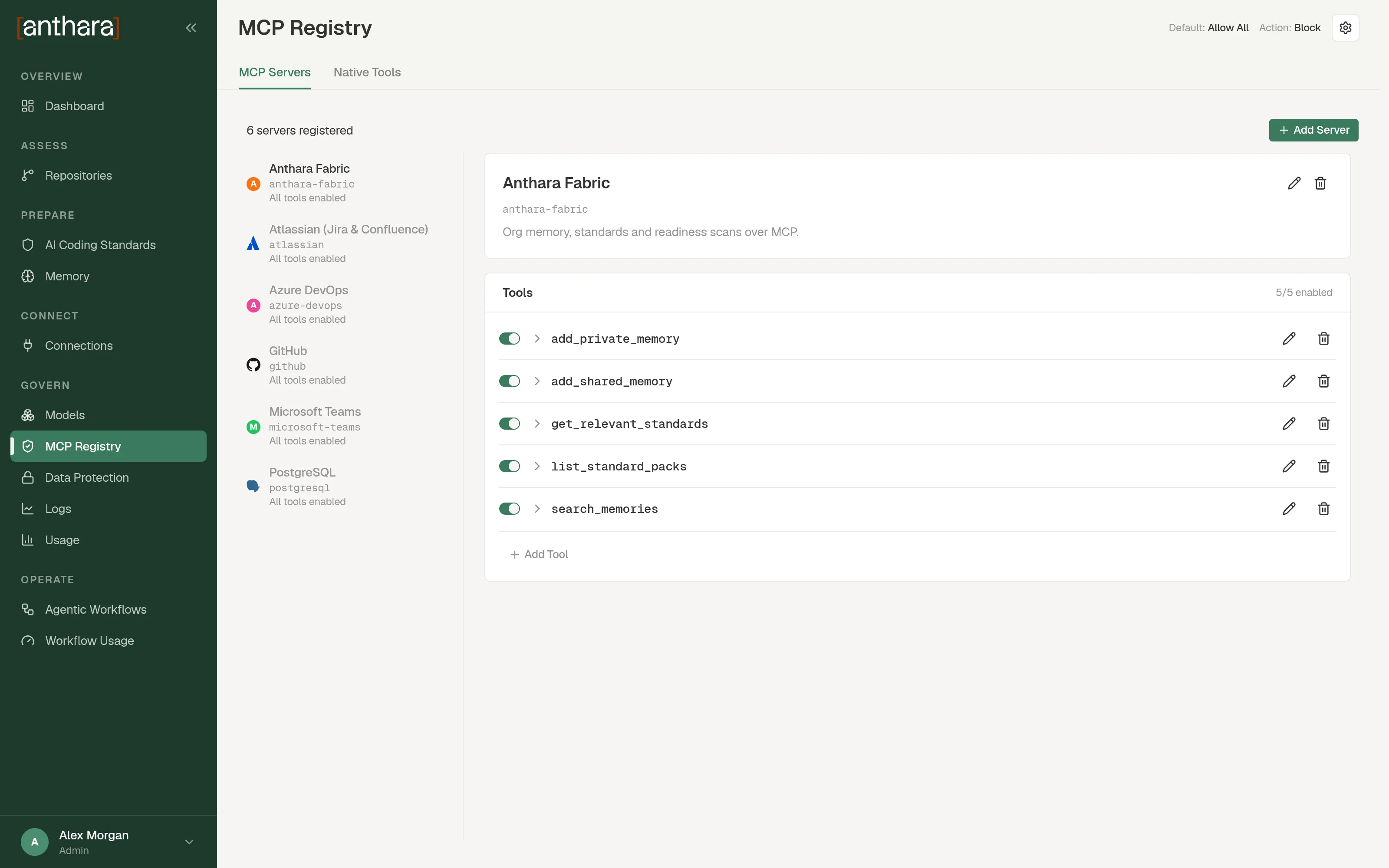
Add an MCP server
Section titled “Add an MCP server”- On the MCP Servers tab, select Add Server.
- Choose a tab in the dialog:
- Catalog: pick a server from the list. Filter catalog narrows it.
- Manual: enter a Server identifier, and optionally a Display label and a Description.
- Select Add Server.
The dialog doesn’t ask for credentials. Registering a server only lets you write tool rules for it.
Add a rule for a tool
Section titled “Add a rule for a tool”- Select the server in the list.
- Under Tools, select Add Tool.
- Enter the Tool name (literal or regex). A regex lets one rule cover several tools.
- Optionally enter a Display label and Tool parameters.
- Select Add Tool.
- Use the switch on the tool’s row to allow or deny it.
The page rejects a regex that is too complex to evaluate safely.
Block specific argument values
Section titled “Block specific argument values”A blocked pattern stops one value of one argument, while the tool stays allowed.
- Open an allowed tool.
- Under Blocked Patterns, select Add pattern.
- Enter the argument path and the value to block.
- Save the pattern.
For native tools, the argument path is fixed. For example, a pattern on Bash matches the command argument, and a pattern on Read matches file_path.
Allow or deny a native tool
Section titled “Allow or deny a native tool”- Open the Native Tools tab and select a tool.
- Use the switch to set it to Allowed or Denied.
A denied native tool can’t be used by AI agents in any context.
Advanced Settings
Section titled “Advanced Settings”Select the settings button in the page header to open Advanced Settings.
| Setting | Options | Effect |
|---|---|---|
| Require Fabric MCP server | On or off | When on, the proxy rejects requests that don’t enable the Fabric MCP server. The switch is unavailable until the feature is enabled in the backend. |
| Default posture | Deny all or Allow all | With Deny all, tools are blocked unless a rule allows them. With Allow all, tools are allowed unless a rule blocks them. |
| When a tool is denied | Strip silently or Block | Strip silently removes the denied tool and lets the request continue. Block rejects the whole request. |
| Blocked-tool message (optional) | Free text | Shown when a tool is denied. Use {tool_name} to name the tool. |
| Blocked-value message (optional) | Free text | Shown when a tool is allowed but an argument value is blocked. Use {blocked_value}, {arg_path}, and {tool_name}. |
Related pages
Section titled “Related pages”- Fabric MCP describes the Fabric MCP server that Require Fabric MCP server refers to.
- Logs shows the tools used in each request.