

Connections
A connection links your Anthara account to your account on another service. Anthara uses it to list repositories, read tickets, open pull requests, and post messages on your behalf.
Two things have to exist before a connection works:
- An app. This is the OAuth client that an admin registers once for the whole organization.
- A connection. This is each person’s own sign-in through that app.
Connect your account
Section titled “Connect your account”Before you begin
Section titled “Before you begin”An admin has added an app for the service. If the Connections page reads No integrations available yet., no app exists yet.
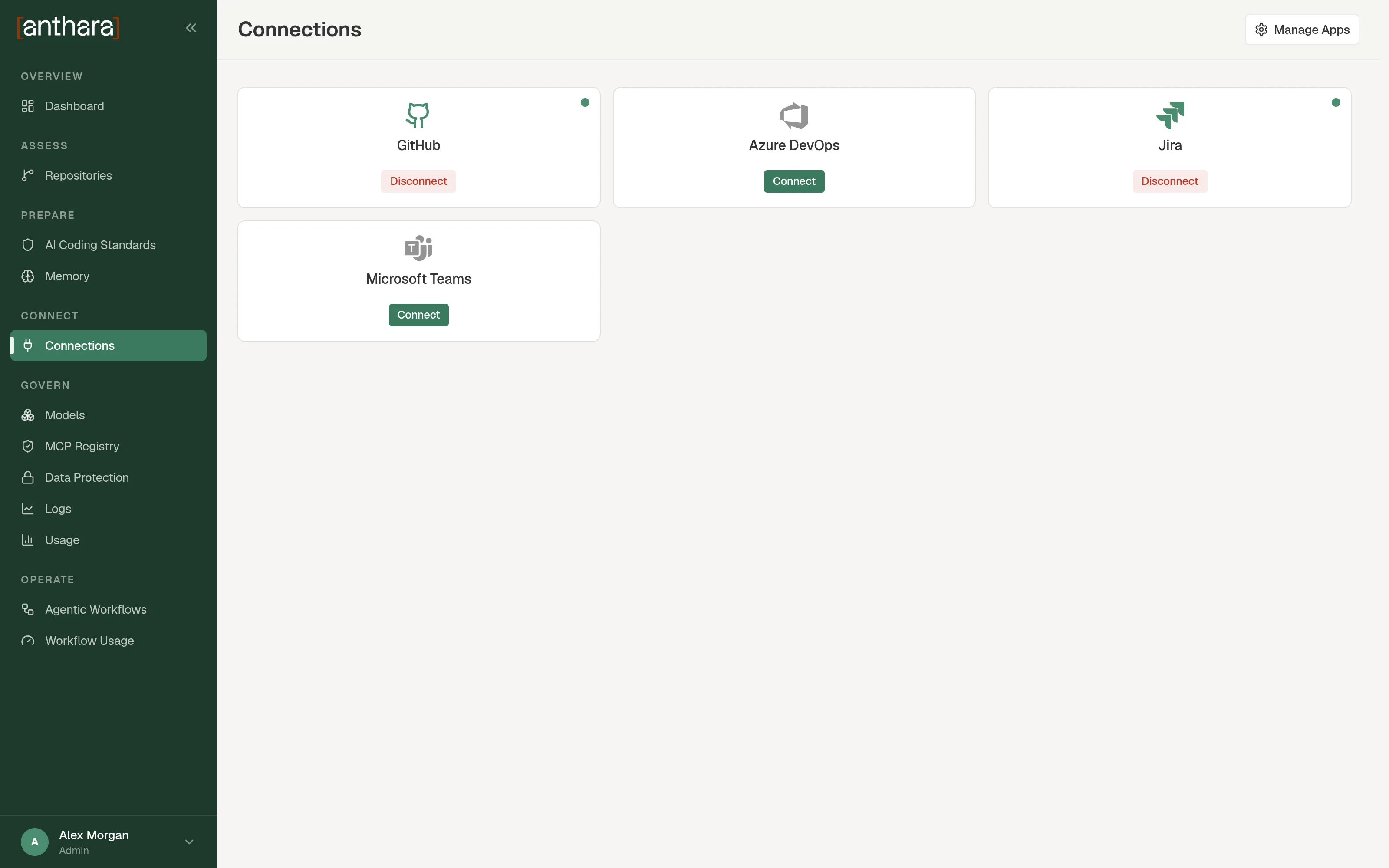
- Open Connections.
- Find the card for the service and select Connect.
- Sign in on the service’s page and approve the access request.
The service sends you back to Connections. A green dot on the card shows that you are connected, and the button changes to Disconnect.
Disconnect your account
Section titled “Disconnect your account”- Open Connections.
- On the card, select Disconnect.
- In the Disconnect from dialog, select Disconnect.
Add an app (admins)
Section titled “Add an app (admins)”Only admins see the Manage Apps button.
Before you begin
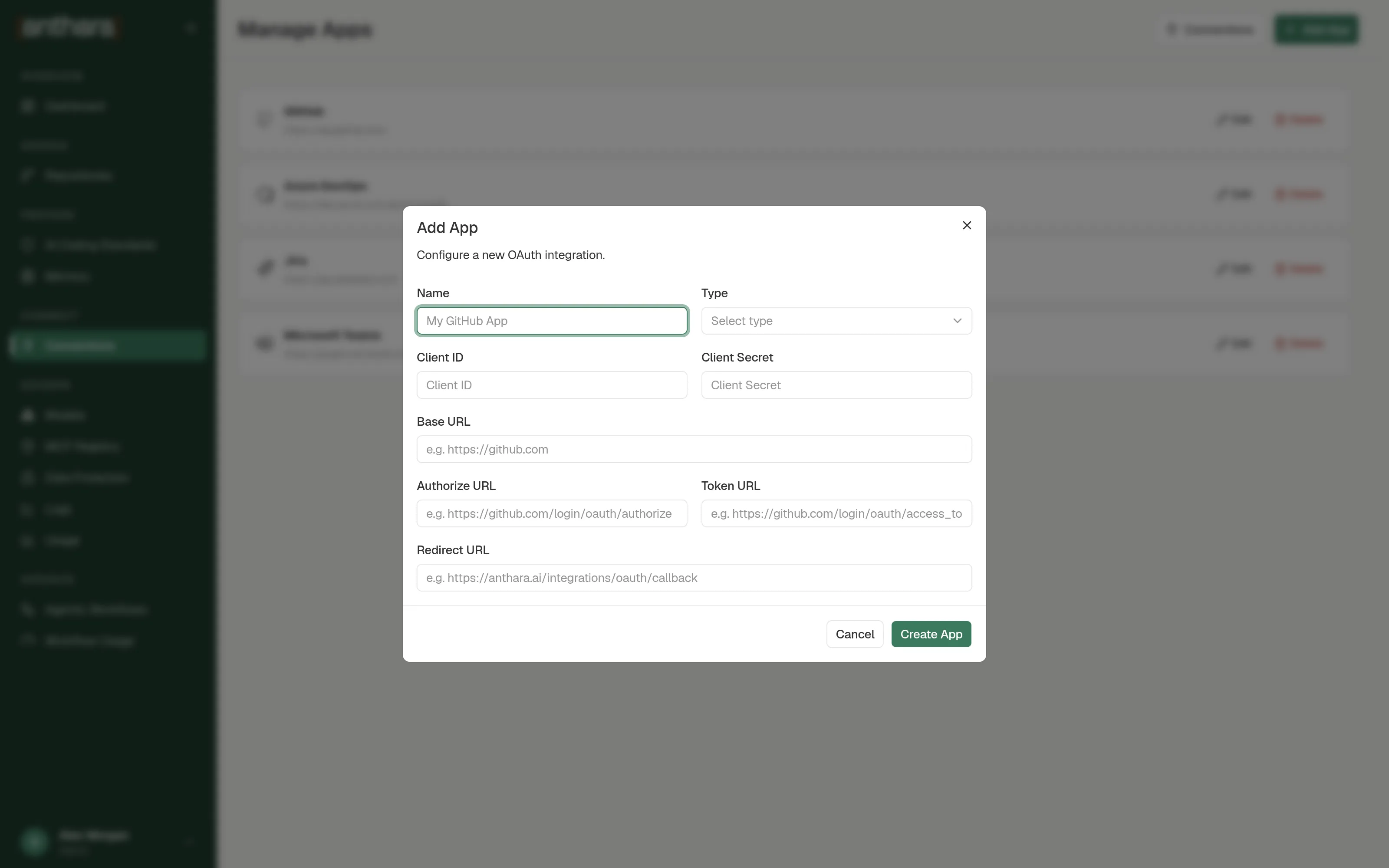
Section titled “Before you begin”Register an OAuth application with the service first. You need its client ID and client secret. Give the service the redirect URL that the Add App form shows.
- Open Connections and select Manage Apps.
- Select Add App.
- Fill in the form.
- Select Create App.
| Field | What to enter |
|---|---|
| Name | The name shown on the connection card. Workflows also refer to a connection by this name, for example Jira. |
| Type | GitHub, Jira, Azure DevOps, or Microsoft Teams. |
| Client ID | The client ID from the OAuth application you registered. |
| Client Secret | The client secret. Anthara stores it encrypted. |
| Base URL | Filled in when you choose a type. |
| Authorize URL | Filled in when you choose a type. |
| Token URL | Filled in when you choose a type. |
| Redirect URL | Filled in with your API address followed by /integrations/oauth/callback. |
Choosing a Type fills in these defaults:
| Type | Base URL | Authorize URL | Token URL |
|---|---|---|---|
| GitHub | https://github.com |
https://github.com/login/oauth/authorize |
https://github.com/login/oauth/access_token |
| Jira | https://auth.atlassian.com |
https://auth.atlassian.com/authorize |
https://auth.atlassian.com/oauth/token |
| Azure DevOps | https://dev.azure.com |
https://login.microsoftonline.com/common/oauth2/v2.0/authorize |
https://login.microsoftonline.com/common/oauth2/v2.0/token |
| Microsoft Teams | https://graph.microsoft.com |
https://login.microsoftonline.com/common/oauth2/v2.0/authorize |
https://login.microsoftonline.com/common/oauth2/v2.0/token |
Edit or delete an app (admins)
Section titled “Edit or delete an app (admins)”On the Manage Apps page, each app has an edit action and a delete action. Editing opens the Edit App dialog with the same fields. Leave Client Secret untouched to keep the stored secret.
What each connection is used for
Section titled “What each connection is used for”| Service | Details |
|---|---|
| GitHub | GitHub |
| Azure DevOps | Azure DevOps |
| Jira | Jira |
| Microsoft Teams | Microsoft Teams |